Contact form
The Contact Form Question type is perfect for allowing anyone to fill in a form that is already in your survey and therefore reduces the unnecessary friction that results from redirecting them to another site. This allows you to put any column or field necessary for your project. It is a concise and clear way of collecting important contact information all in one question.
Let’s say you need to collect a large amount of demographic information from your respondents that will also automatically fill in this contact information for this particular participant in your database. You might be a nurse coordinator seeking to collect contact information of patients as they come into the examination room or you might be running a project collecting feedback from patients on their care and you would like to retain their information to potentially reach out to them.
Setup
Let’s take it step by step !
- While you’re editing your survey, select “Add question” and then select “Contact Form”.

- This will bring forth the question and you can edit it however you want. You can add and format text and add in subtext below.

- Then you should be able to see the Form Fields (Answer Choices). You can change the order of the fields, but you cannot change the content. You are able to hide unwanted fields by clicking the eye icon. You may note the validation column in these Form Fields, this only applies to some such as Postal Code and Phone number (the validation is only applicable in North America) and Email.

Behavior
This section allows you to set different validations for your questions in addition to setting up an alias for your question and deciding whether or not you want to allow the respondent to add an option against the question on their own.
Make Question Required
Checkmark this box if you want the question to be answered as compulsory. The user can not go forward from the current page unless the question is answered.
Question Alias
Aliases are the alternate texts or codes that you can display on your reports/exports. These values are not visible to the respondent and are helpful when you want to associate a particular value with your provided question.

Appearance
This section of your question allows you to administer how your questions and your options would appear on your survey page.
Question Text Position
Lets you decide the position of your question with respect to the options. By default, it is set to “Top”. This means that the question will be placed above the answer options
Question Position
Lets you decide the alignment of the question (left, middle, right) with respect to the survey page. By default, it is set to “Left. This means that your question will be left indented.
Width
This section allows you to configure how much space you want your form to take in terms of the width.

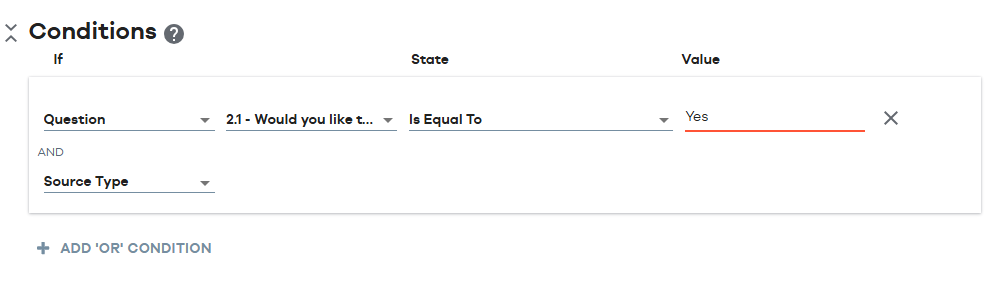
Conditions
This section of the question allows you to manage the conditional appearance of the question based on either a previous response, a contact attribute or a response property. You can combine two or more conditions using “OR/ AND” conditions by clicking on them. Please refer to our “Quick Start: Add a Condition to a Question”.